# Table-view Databases

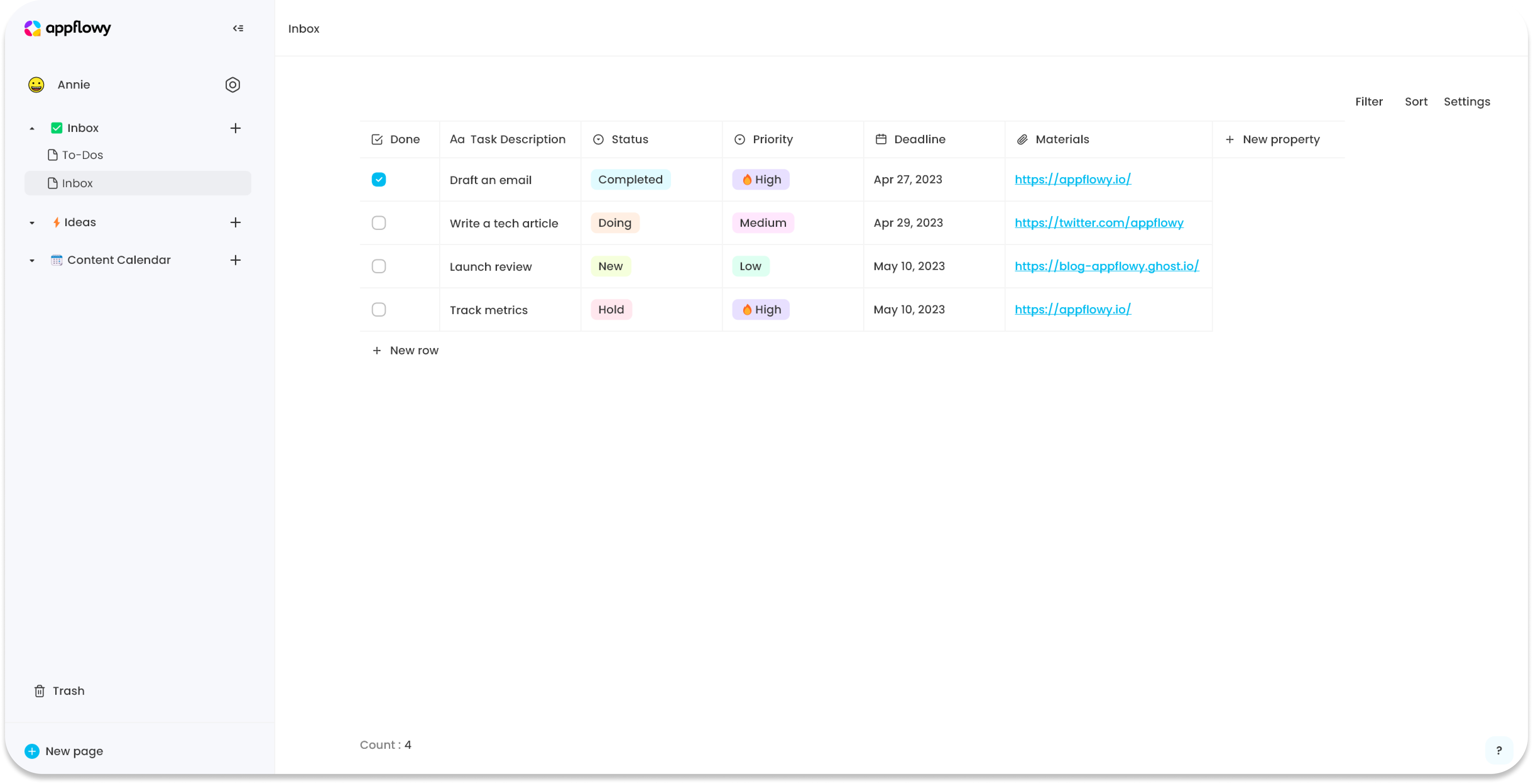
A table-view database is also called a Grid. It looks like a classic table but can do more than just rows and columns.

<figure><img src="https://1003959744-files.gitbook.io/~/files/v0/b/gitbook-x-prod.appspot.com/o/spaces%2Fvs4LQcuzr0JR34ApS5sM%2Fuploads%2Fl4vS1cgMM8UKV7tXzsJZ%2Fappflowy_light_mode_databases.png?alt=media&#x26;token=69b2055a-bbbd-4252-9b9c-852924fc0552" alt=""><figcaption></figcaption></figure>

## Create a database in table view

There are two ways:

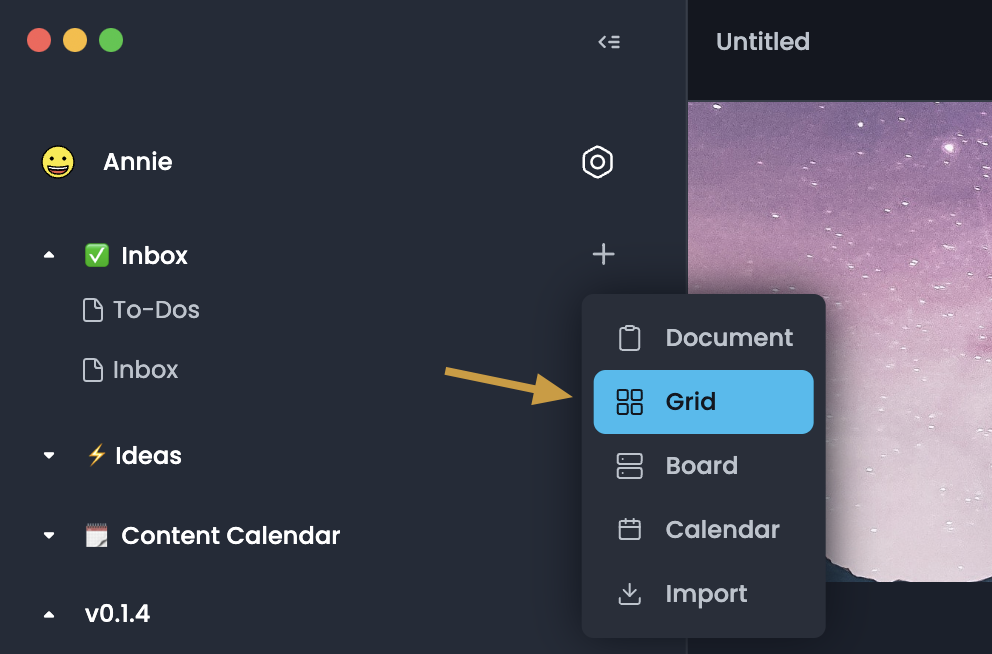
1. Click on the `+` icon next to a page, then select "Grid"

   <figure><img src="https://1003959744-files.gitbook.io/~/files/v0/b/gitbook-x-prod.appspot.com/o/spaces%2Fvs4LQcuzr0JR34ApS5sM%2Fuploads%2F1NUgsZyB39m3wmHBcW7U%2Fimage.png?alt=media&#x26;token=2736d91f-e5a9-4d11-afa3-c65f0ceef38b" alt=""><figcaption></figcaption></figure>
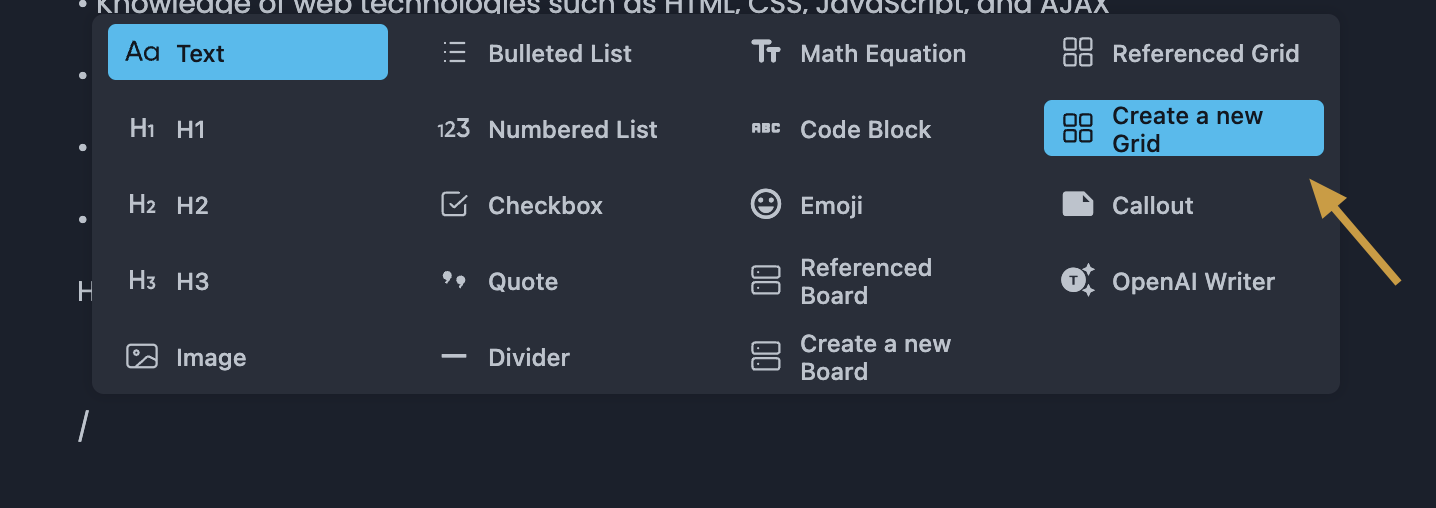
2. Create one inside a page. Type `/` to open up the menu. Select `Create a new Grid`

<figure><img src="https://1003959744-files.gitbook.io/~/files/v0/b/gitbook-x-prod.appspot.com/o/spaces%2Fvs4LQcuzr0JR34ApS5sM%2Fuploads%2F6lhumD80A4Nfc3Kk81jd%2Fimage.png?alt=media&#x26;token=e6ef3c5b-06a2-4010-ad6c-351dc8acdaa1" alt=""><figcaption></figcaption></figure>

## Rows&#x20;

Every row in a database is a page. You can open a row as a page to edit properties or enter values.

* Hover over a row and click the `Open as a Page` button

![](https://1003959744-files.gitbook.io/~/files/v0/b/gitbook-x-prod.appspot.com/o/spaces%2Fvs4LQcuzr0JR34ApS5sM%2Fuploads%2FZwHGN8rqAmhoepEYQV9N%2Fimage.png?alt=media\&token=11a80f14-d9b0-4f43-aa31-87cfc278f539)

* You will see all the properties organized at the top.
  * Click on the property name to edit it or its type.
  * Click in the property field to edit its content.
  * Learn more about how to [manage properties](https://docs.appflowy.io/docs/~/changes/m6N8vk400Qj23REmHprl/essential-documentation/databases/manage-properties).
* You can also add a new property to your database by clicking `+ New property`.
* You can perform `Delete` and `Duplicate` on the current row.
  * `Delete`: delete this row
  * `Duplicate:` duplicate this row

### Add Rows

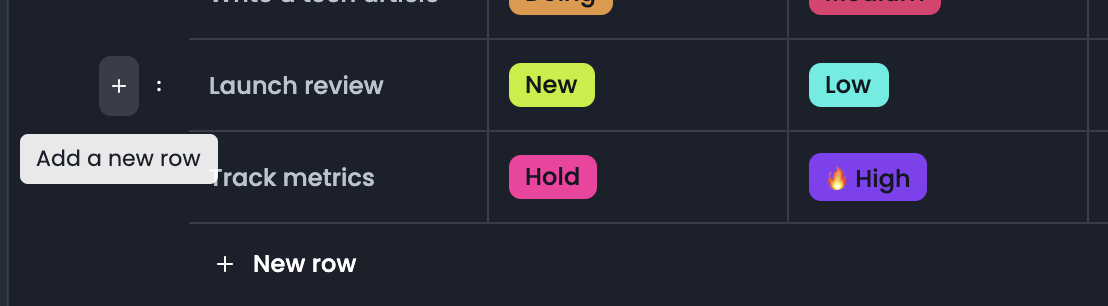
* Click the `+` that appears on hover next to any row. This creates a new row below it.

<figure><img src="https://1003959744-files.gitbook.io/~/files/v0/b/gitbook-x-prod.appspot.com/o/spaces%2Fvs4LQcuzr0JR34ApS5sM%2Fuploads%2FH6njzkWo9ZJEXBxlXRxs%2Fimage.png?alt=media&#x26;token=9ec25fbc-33d9-4bc3-8b38-1d6d18d71c04" alt=""><figcaption></figcaption></figure>

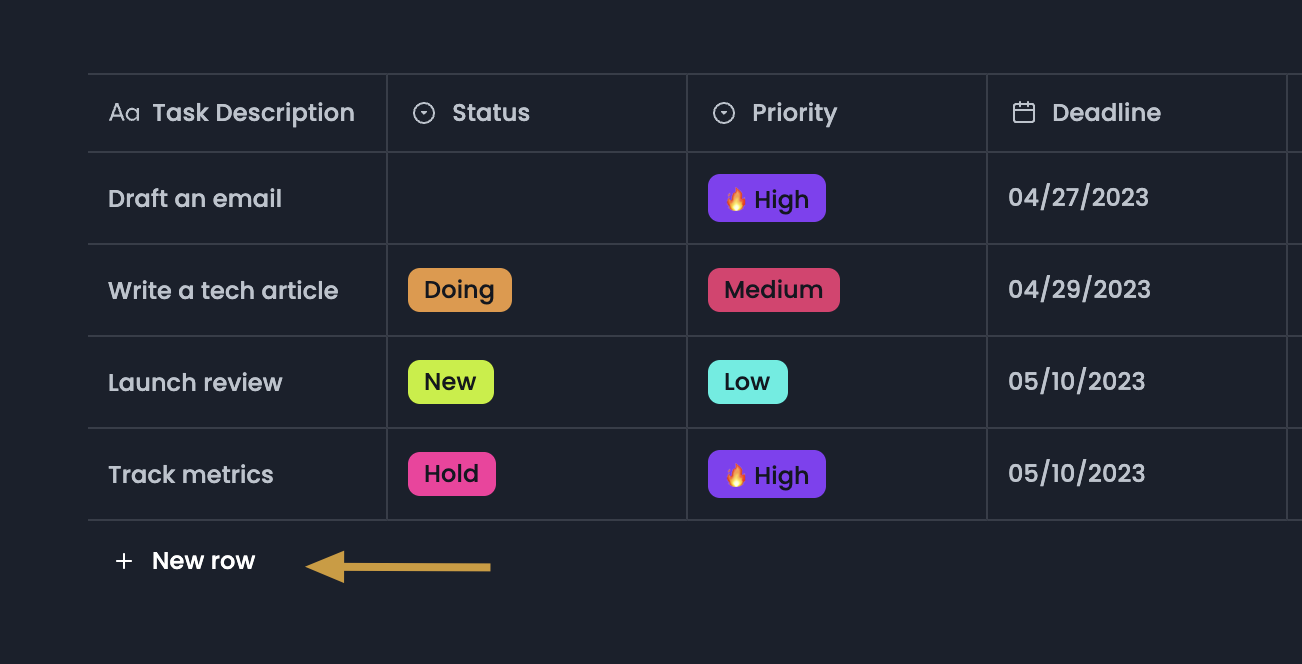
* Click `+ New` at the bottom of your table to add a new row right there.

<figure><img src="https://1003959744-files.gitbook.io/~/files/v0/b/gitbook-x-prod.appspot.com/o/spaces%2Fvs4LQcuzr0JR34ApS5sM%2Fuploads%2FkJw17AChMejYt8JtpkVu%2Fimage.png?alt=media&#x26;token=7ce569fb-a99c-4364-9916-60c3f2b7073d" alt=""><figcaption></figcaption></figure>

### Row Options

Click the :: icon that appears on hover to the left of each row to bring up this menu of options:

* `Delete`: Deletes the row from your list.

## Customize your table

### Edit table properties

#### Add a property

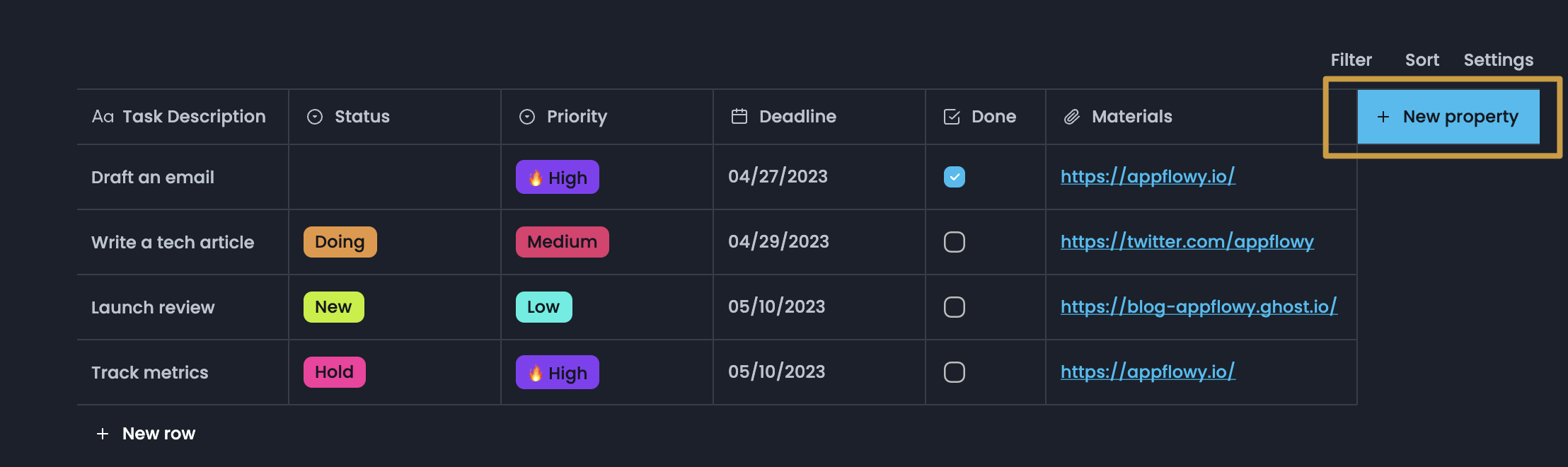
* Click the `+` all the way to the right of your last column.

<figure><img src="https://1003959744-files.gitbook.io/~/files/v0/b/gitbook-x-prod.appspot.com/o/spaces%2Fvs4LQcuzr0JR34ApS5sM%2Fuploads%2FYfBZs05HjMSVmWpsWiS3%2Fimage.png?alt=media&#x26;token=226687d1-c709-42f0-81dd-15be52763f05" alt=""><figcaption></figcaption></figure>

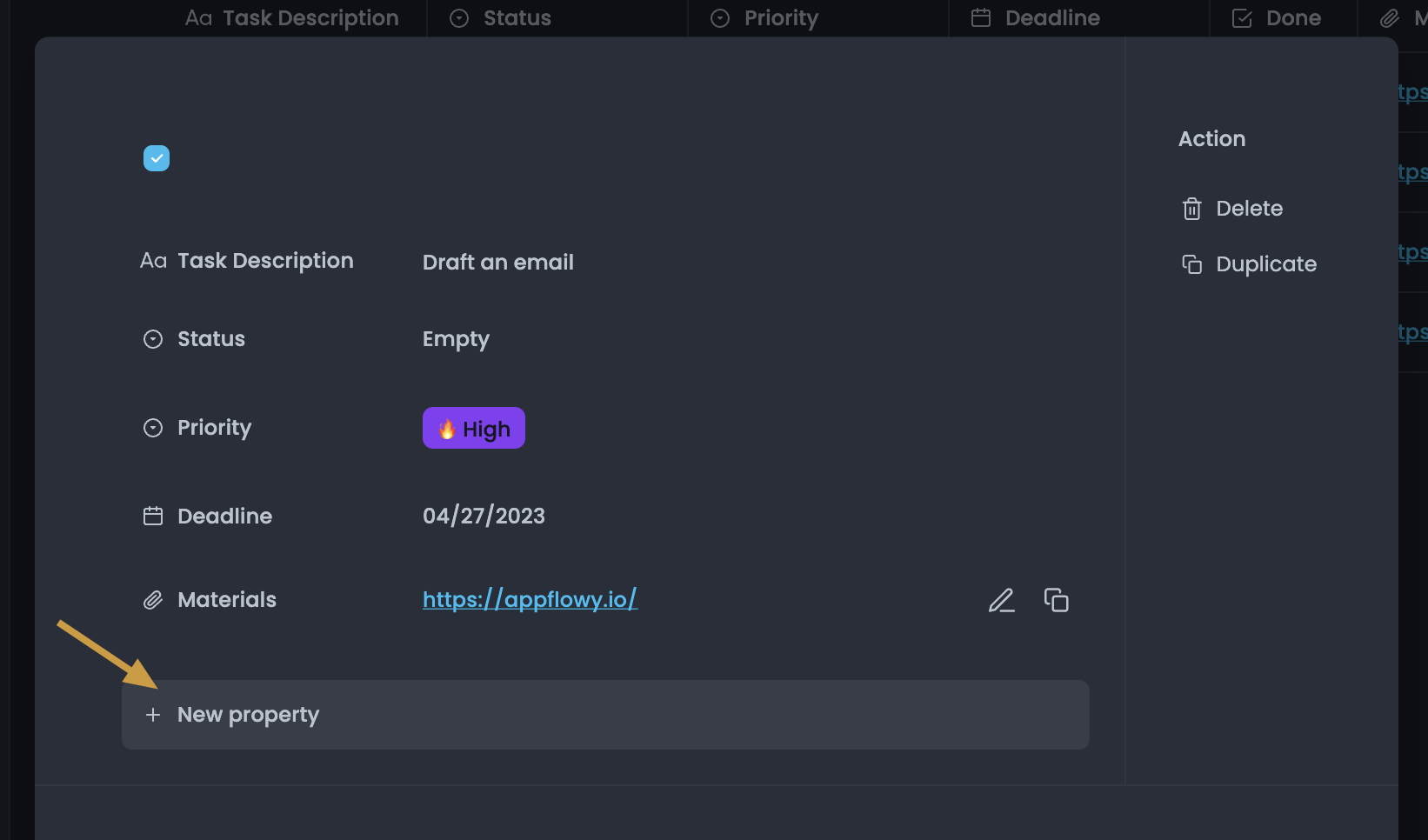
* Open row as a page and then click `+New Property`

<figure><img src="https://1003959744-files.gitbook.io/~/files/v0/b/gitbook-x-prod.appspot.com/o/spaces%2Fvs4LQcuzr0JR34ApS5sM%2Fuploads%2FmOwLpQyAgrns0nRTU9ZZ%2Fimage.png?alt=media&#x26;token=3a1bbfeb-3d86-49f3-ae8b-721ba9a33cb1" alt=""><figcaption></figcaption></figure>

* Learn more about how to [manage properties](https://docs.appflowy.io/docs/~/changes/m6N8vk400Qj23REmHprl/essential-documentation/databases/manage-properties).

## Filter

View only the rows that fit certain criteria.

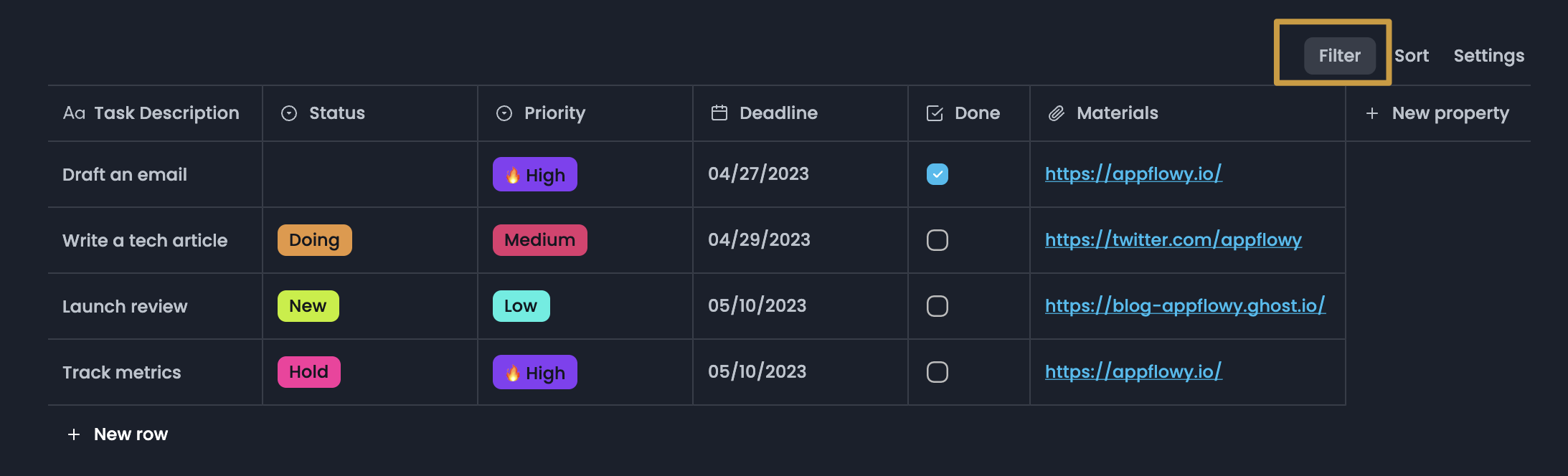
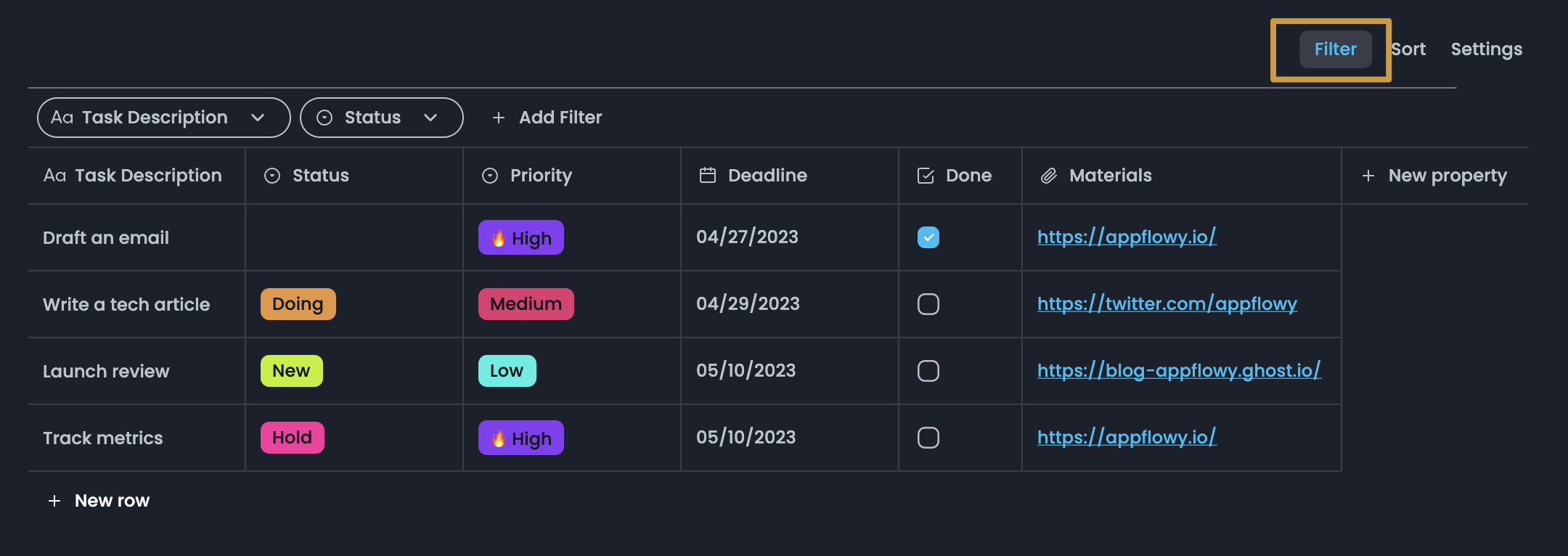
* Click `Filter` at the top right of your table.

<figure><img src="https://1003959744-files.gitbook.io/~/files/v0/b/gitbook-x-prod.appspot.com/o/spaces%2Fvs4LQcuzr0JR34ApS5sM%2Fuploads%2FF6gbhEhyQujHZ11x8XfO%2Fimage.png?alt=media&#x26;token=ab2c4df7-b2a6-4bbd-85b6-682520d27a48" alt=""><figcaption></figcaption></figure>

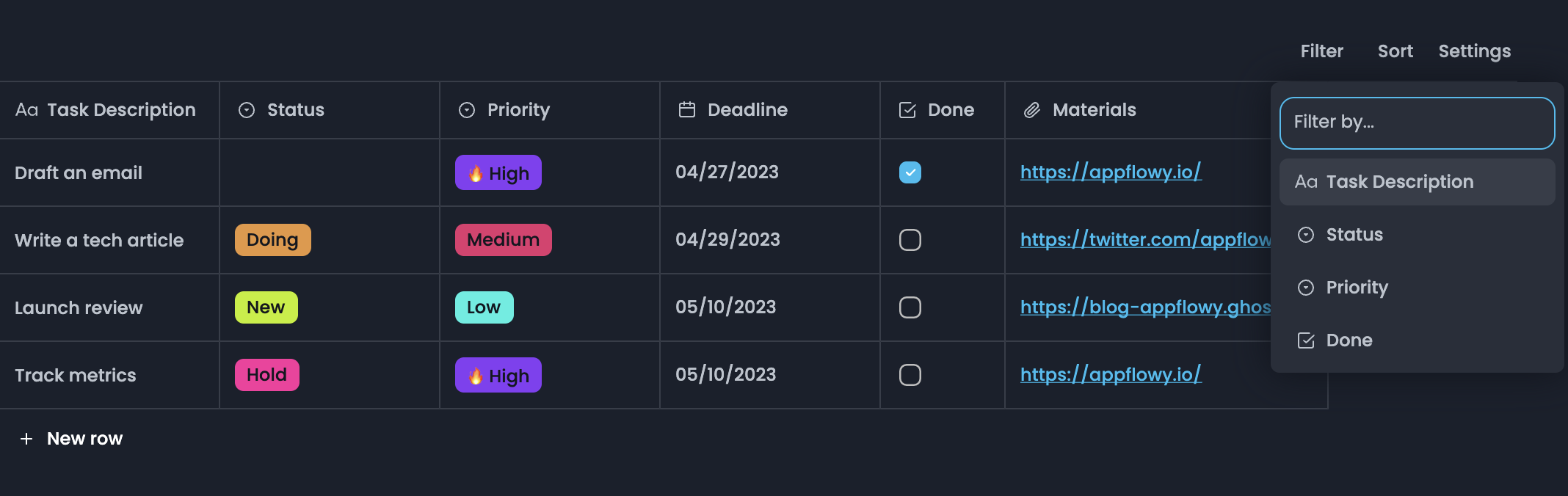
* Choose which property you want to filter by from the dropdown.

<figure><img src="https://1003959744-files.gitbook.io/~/files/v0/b/gitbook-x-prod.appspot.com/o/spaces%2Fvs4LQcuzr0JR34ApS5sM%2Fuploads%2FwEa6M2hVCI177yNFV4iQ%2Fimage.png?alt=media&#x26;token=d5abb949-e224-4806-a64c-ecb08f98c513" alt=""><figcaption></figcaption></figure>

* Choose the condition you want to use, i.e. `is`, `is not`, etc.

<figure><img src="https://1003959744-files.gitbook.io/~/files/v0/b/gitbook-x-prod.appspot.com/o/spaces%2Fvs4LQcuzr0JR34ApS5sM%2Fuploads%2FNR5M6Pu8YCk6XPjTS2Z8%2Fimage.png?alt=media&#x26;token=63698326-4446-4100-b46e-9303f9d8938f" alt=""><figcaption></figcaption></figure>

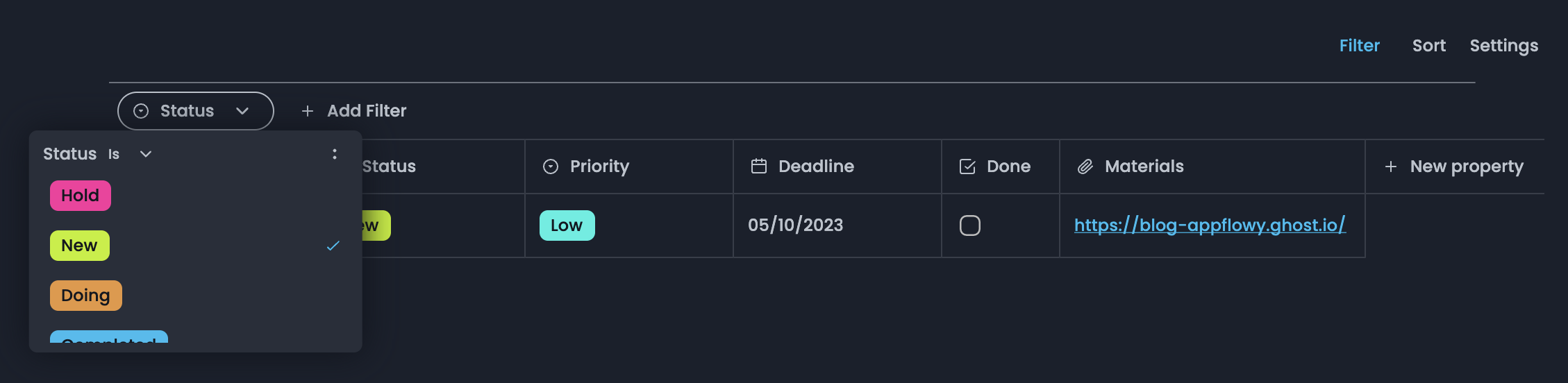
* Define the value of the property you want to see, i.e. a specific tag or contains certain words.
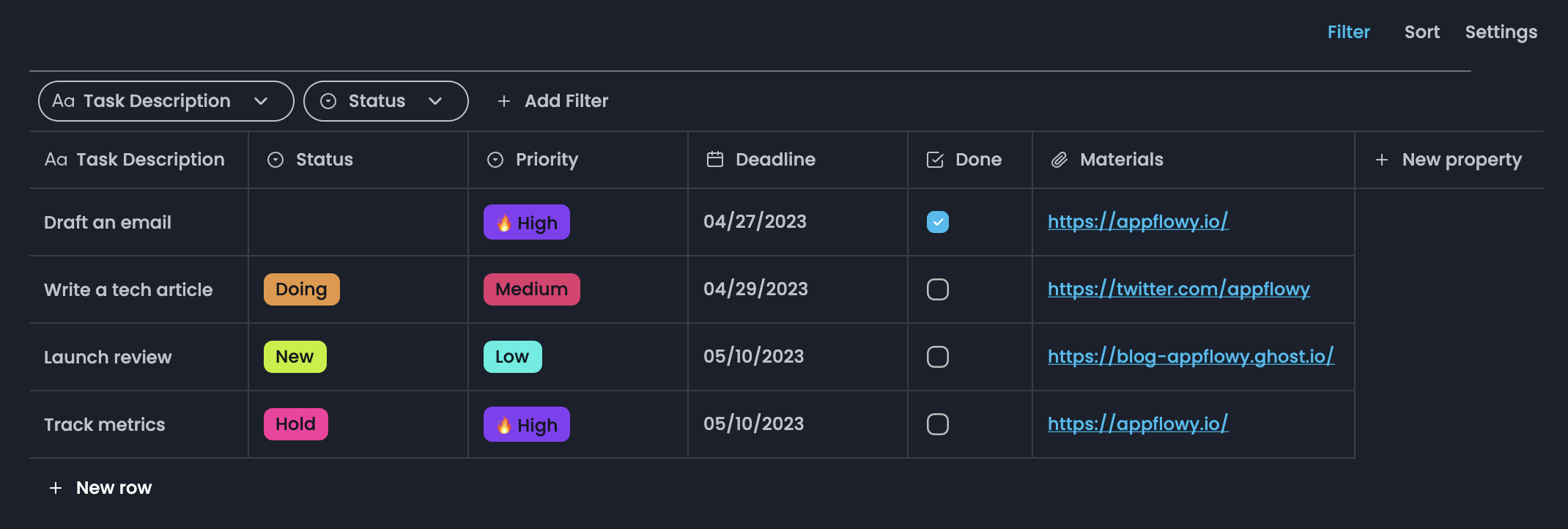
* You can add multiple filters.

<figure><img src="https://1003959744-files.gitbook.io/~/files/v0/b/gitbook-x-prod.appspot.com/o/spaces%2Fvs4LQcuzr0JR34ApS5sM%2Fuploads%2Fscz4mwo7vYq4ei0xchoE%2Fimage.png?alt=media&#x26;token=d2d74e00-c2e6-4633-9781-901de3646296" alt=""><figcaption></figcaption></figure>

* Click `Filter` again to hide or show filters

<figure><img src="https://1003959744-files.gitbook.io/~/files/v0/b/gitbook-x-prod.appspot.com/o/spaces%2Fvs4LQcuzr0JR34ApS5sM%2Fuploads%2FMSegXUCWUVRCLL9O2UgR%2Fimage.png?alt=media&#x26;token=2ad39886-c164-4e62-9dcf-cf6dc606b85d" alt=""><figcaption></figcaption></figure>

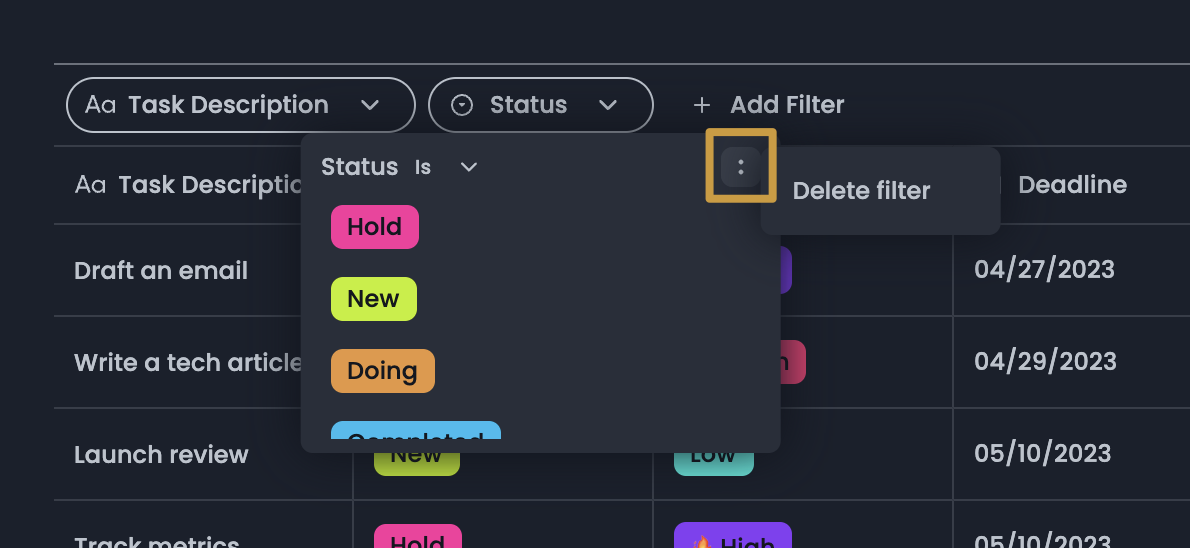
* Remove a filter by clicking on the filter and then the `:` menu

<figure><img src="https://1003959744-files.gitbook.io/~/files/v0/b/gitbook-x-prod.appspot.com/o/spaces%2Fvs4LQcuzr0JR34ApS5sM%2Fuploads%2FH9qEyIblP9mfXKfae2gM%2Fimage.png?alt=media&#x26;token=344fb92d-3f53-4c23-a210-36941c666e3e" alt=""><figcaption></figcaption></figure>

## Sort

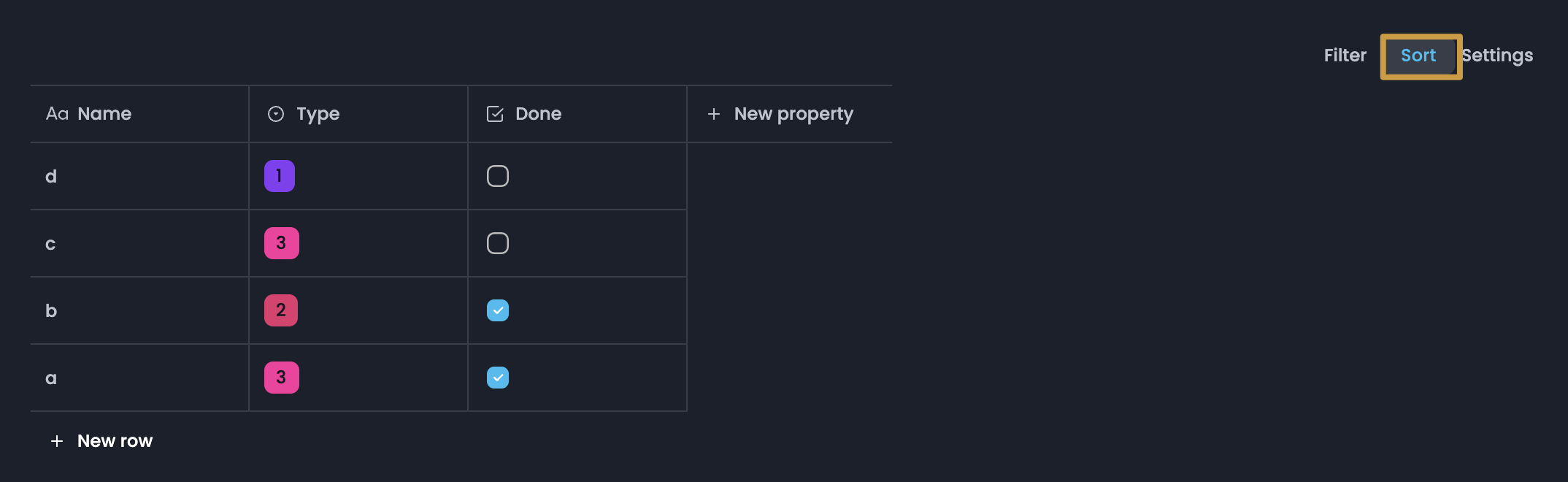
When you sort your data by any property in `Ascending` or `Descending` order, all the data from that row will travel together automatically.

<figure><img src="https://1003959744-files.gitbook.io/~/files/v0/b/gitbook-x-prod.appspot.com/o/spaces%2Fvs4LQcuzr0JR34ApS5sM%2Fuploads%2FW3KV6Nphu9PzXPHiclfq%2Fimage.png?alt=media&#x26;token=07a44ef1-ce1e-48a2-9b91-e6bdac407e58" alt=""><figcaption></figcaption></figure>

* Click `Sort` at the top right of your table.
* Choose the property you want to sort by, then choose `Ascending` or `Descending`. You'll see your table rearrange in real time.
* You can add multiple sorts to a table, with sorting criteria taking precedence based on their order in the list.
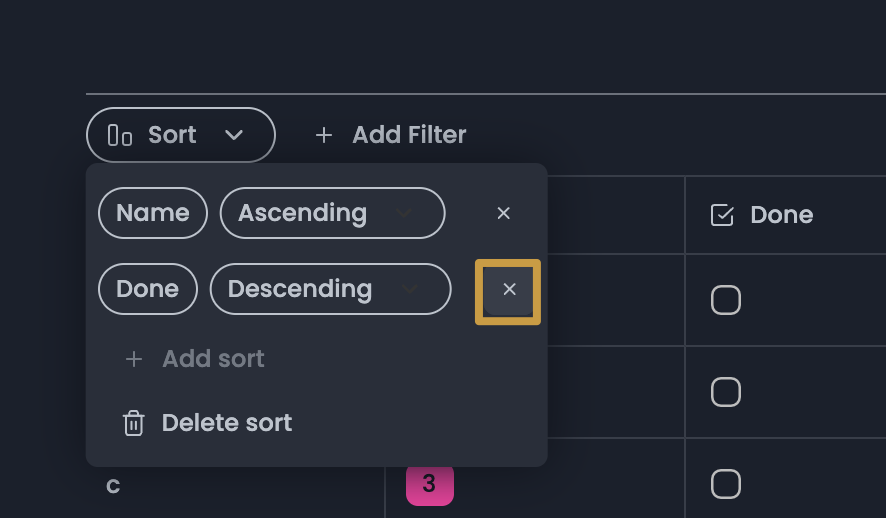
* Remove sorts by clicking the X icon in the Sort menu next to them.

<figure><img src="https://1003959744-files.gitbook.io/~/files/v0/b/gitbook-x-prod.appspot.com/o/spaces%2Fvs4LQcuzr0JR34ApS5sM%2Fuploads%2F4RerAmF0hmMbcdiZ9lgu%2Fimage.png?alt=media&#x26;token=d164477a-f840-433b-9adf-00ec456f5abe" alt=""><figcaption></figcaption></figure>

## Linked View of Database

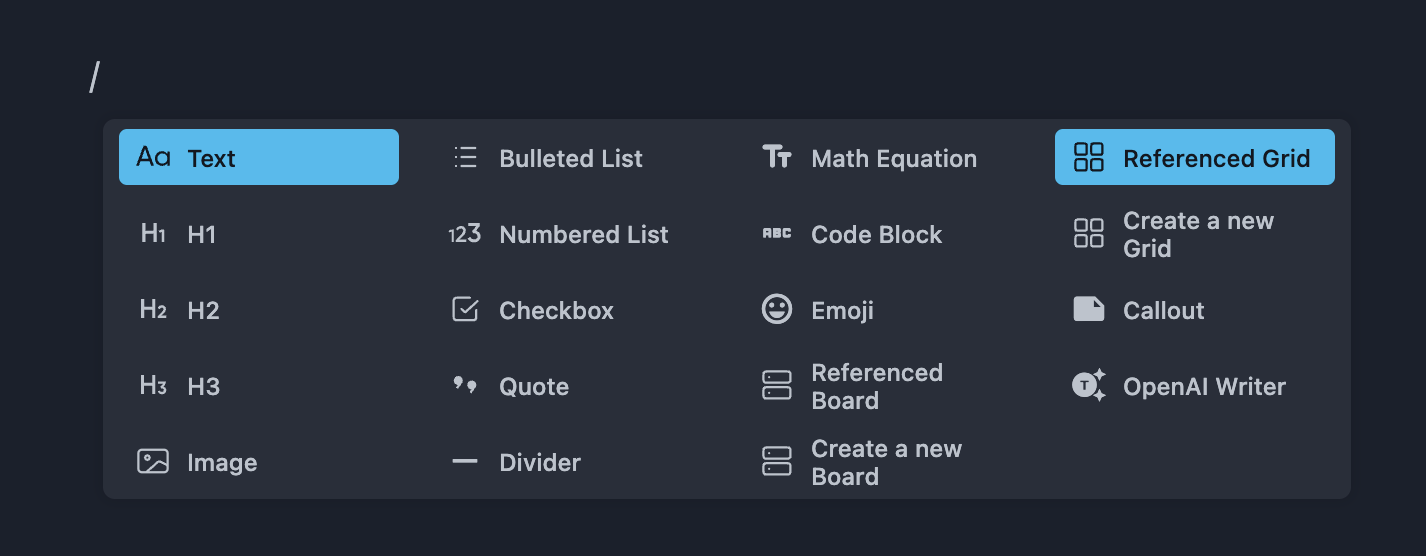
You can add an existing view of database to a page. Type `/` to open the slash menu.&#x20;

Select `Referenced Grid`\` to link an existing table-view database.

<figure><img src="https://1003959744-files.gitbook.io/~/files/v0/b/gitbook-x-prod.appspot.com/o/spaces%2Fvs4LQcuzr0JR34ApS5sM%2Fuploads%2FxwQJvdCH3QWucvG8Nhuv%2Fimage.png?alt=media&#x26;token=b3f85076-a688-4554-b94c-866b0397a970" alt=""><figcaption></figcaption></figure>

Property value changes you made to the linked view will sync back to the original database.&#x20;