# Manage Properties

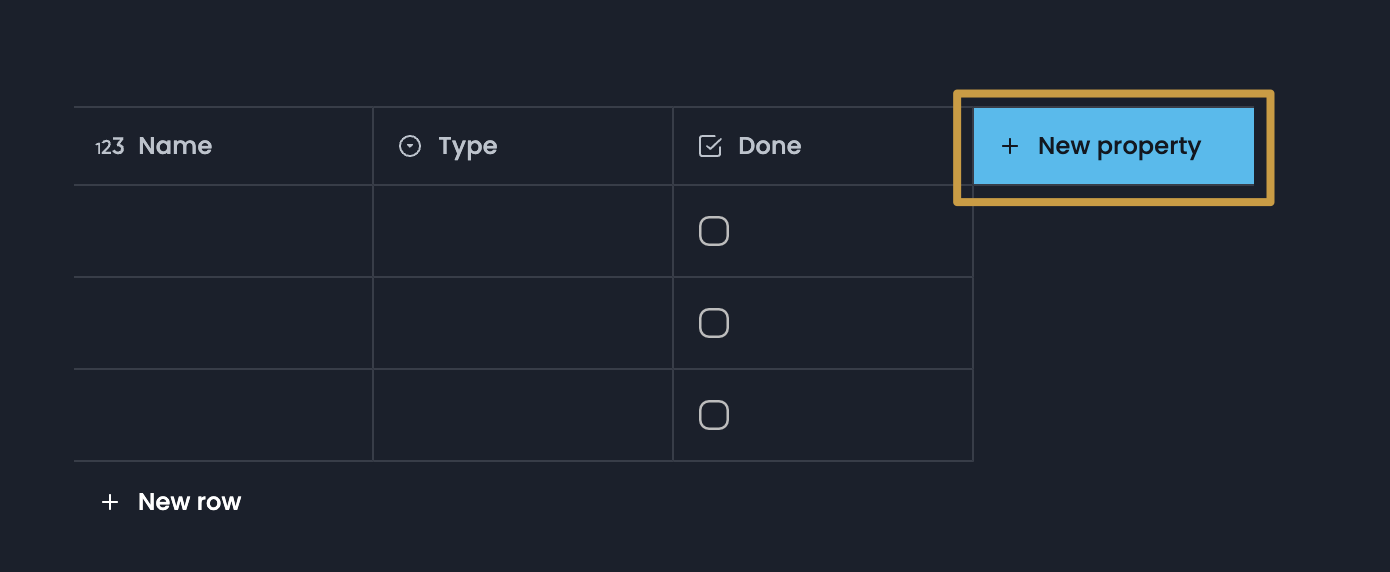
### How to add a property

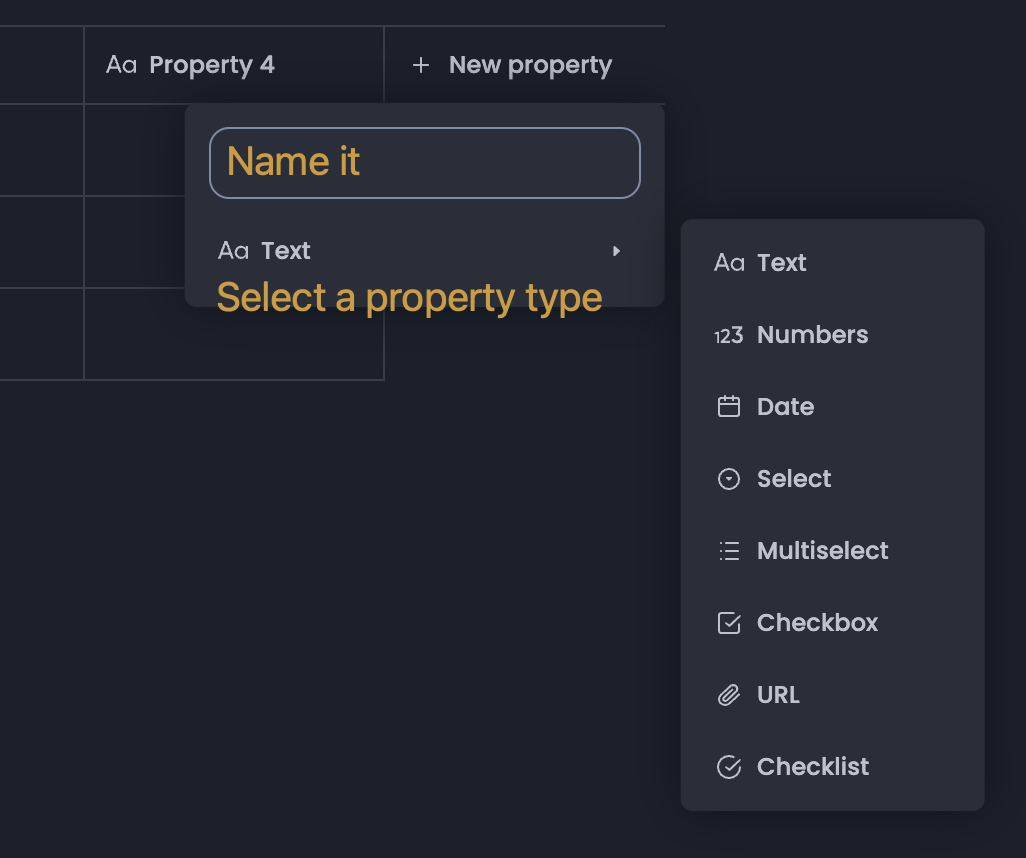
<figure><img src="https://1003959744-files.gitbook.io/~/files/v0/b/gitbook-x-prod.appspot.com/o/spaces%2Fvs4LQcuzr0JR34ApS5sM%2Fuploads%2FMw5SqEK5nrY2bsAMaGYU%2Fimage.png?alt=media&#x26;token=125cedc6-705a-42b8-a9c4-9500fbe32955" alt=""><figcaption><p>How to Add a New Property</p></figcaption></figure>

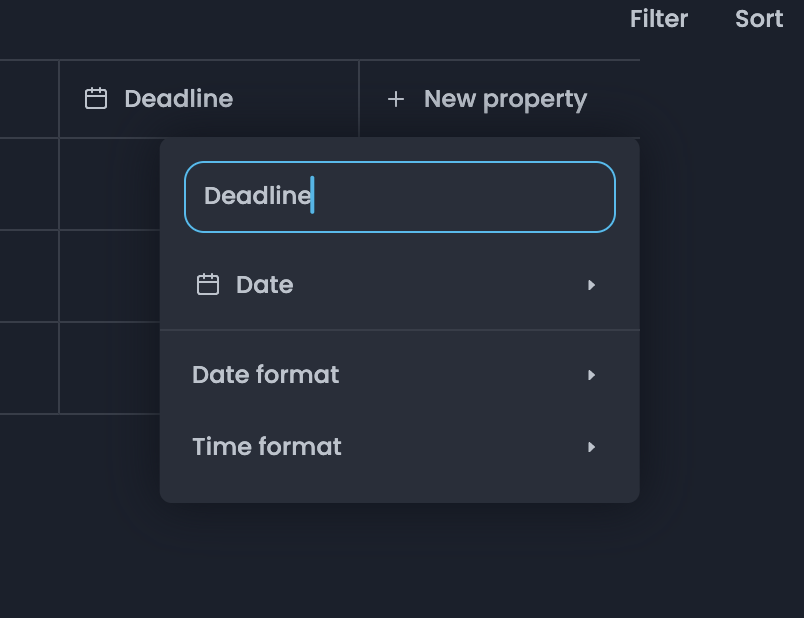
<figure><img src="https://1003959744-files.gitbook.io/~/files/v0/b/gitbook-x-prod.appspot.com/o/spaces%2Fvs4LQcuzr0JR34ApS5sM%2Fuploads%2FH7F7yKeOEt2pXo1JYyNY%2Fimage.png?alt=media&#x26;token=d3d90019-cbcf-4edc-80cc-50dd4009705a" alt=""><figcaption><p>Name Property and Change its Type</p></figcaption></figure>

This is how it looks if I select `Date` and name it as "Deadline".

<figure><img src="https://1003959744-files.gitbook.io/~/files/v0/b/gitbook-x-prod.appspot.com/o/spaces%2Fvs4LQcuzr0JR34ApS5sM%2Fuploads%2F3YPDKdAr61Urvzw2VHFG%2Fimage.png?alt=media&#x26;token=750a280d-776c-43af-8de1-103a43a1a030" alt=""><figcaption></figcaption></figure>

### Edit property values

Data put under a property (or a column) is called a value. Setting up a proper property type enables you to quickly enter a value.&#x20;

#### Select

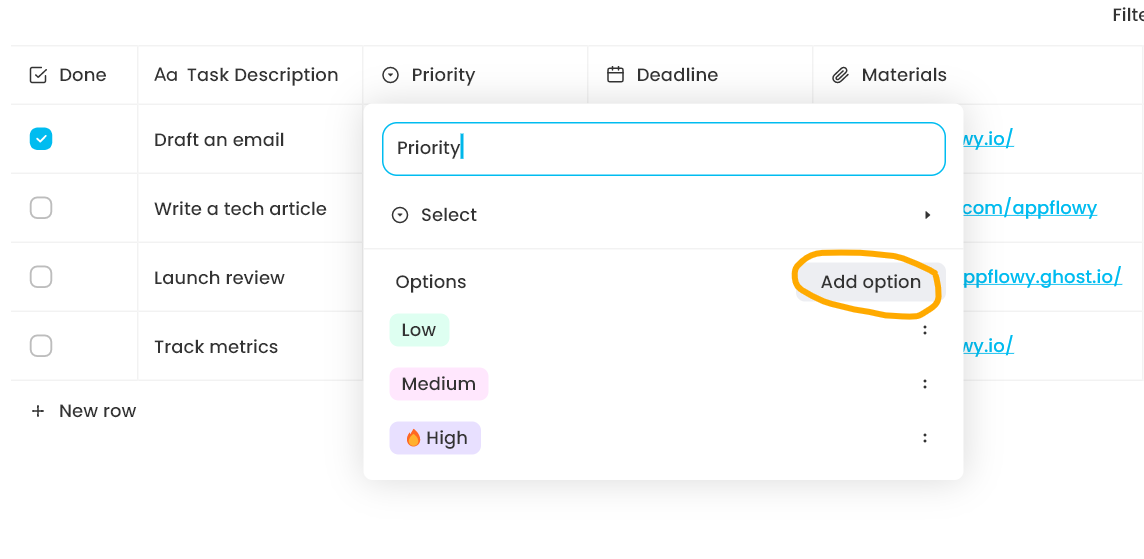
* `Add unique tags to this property by clicking on the property name and then choosing Edit property`
* `Clicking on Add option to add unique values`
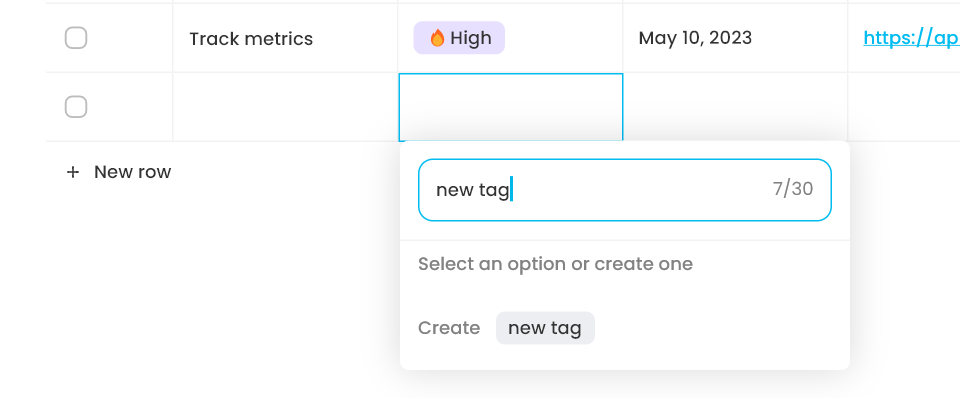
* &#x20;You can also enter a new tag by clicking on a cell under the column, typing what you want, and pressing enter after each. Colors are randomly assigned.

<figure><img src="https://1003959744-files.gitbook.io/~/files/v0/b/gitbook-x-prod.appspot.com/o/spaces%2Fvs4LQcuzr0JR34ApS5sM%2Fuploads%2FSsGxGz4n64K74xmsLwqF%2Fimage.png?alt=media&#x26;token=571b26c2-4c80-44bd-bc1b-c25d3086ade4" alt=""><figcaption></figcaption></figure>

<figure><img src="https://1003959744-files.gitbook.io/~/files/v0/b/gitbook-x-prod.appspot.com/o/spaces%2Fvs4LQcuzr0JR34ApS5sM%2Fuploads%2F9TD0ICNufpu9Iv850Agw%2Fimage.png?alt=media&#x26;token=ecdcbaac-78b4-4474-8c64-e53e2bb08bd4" alt=""><figcaption></figcaption></figure>

<figure><img src="https://1003959744-files.gitbook.io/~/files/v0/b/gitbook-x-prod.appspot.com/o/spaces%2Fvs4LQcuzr0JR34ApS5sM%2Fuploads%2FeF2s1r7Q4IMamGCo6TFQ%2Fimage.png?alt=media&#x26;token=25957ae7-7b4c-4b45-8d81-8cf06b31afc7" alt=""><figcaption></figcaption></figure>

#### Multi-Select

* Work almost the same as `Select` except that each value can hold more than one tag.
* For example, Priority is a `Select` property while Categories is a `Multi-Select` property.

<figure><img src="https://1003959744-files.gitbook.io/~/files/v0/b/gitbook-x-prod.appspot.com/o/spaces%2Fvs4LQcuzr0JR34ApS5sM%2Fuploads%2FMwoIQfv9lcov2VhvYdgC%2Fimage.png?alt=media&#x26;token=ca81af23-b889-4e5f-9e25-4e679527bec8" alt=""><figcaption></figcaption></figure>

#### Date

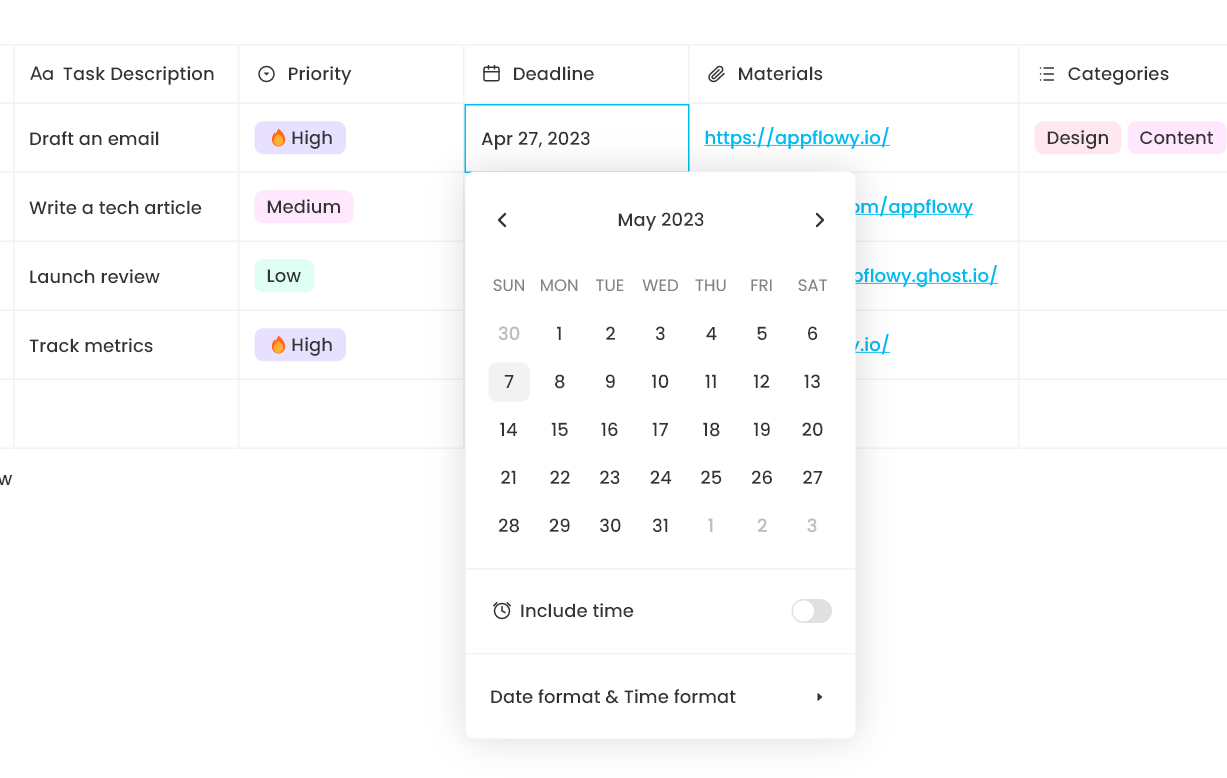
* Clicking to add data will bring up a calendar picker, where you can select the day relevant to the database item — maybe it's a start date or deadline.

<figure><img src="https://1003959744-files.gitbook.io/~/files/v0/b/gitbook-x-prod.appspot.com/o/spaces%2Fvs4LQcuzr0JR34ApS5sM%2Fuploads%2FnTdTlQ32n2iID8KdauvI%2Fimage.png?alt=media&#x26;token=cec88957-ceba-4916-b88a-98d9082b5abc" alt=""><figcaption></figcaption></figure>

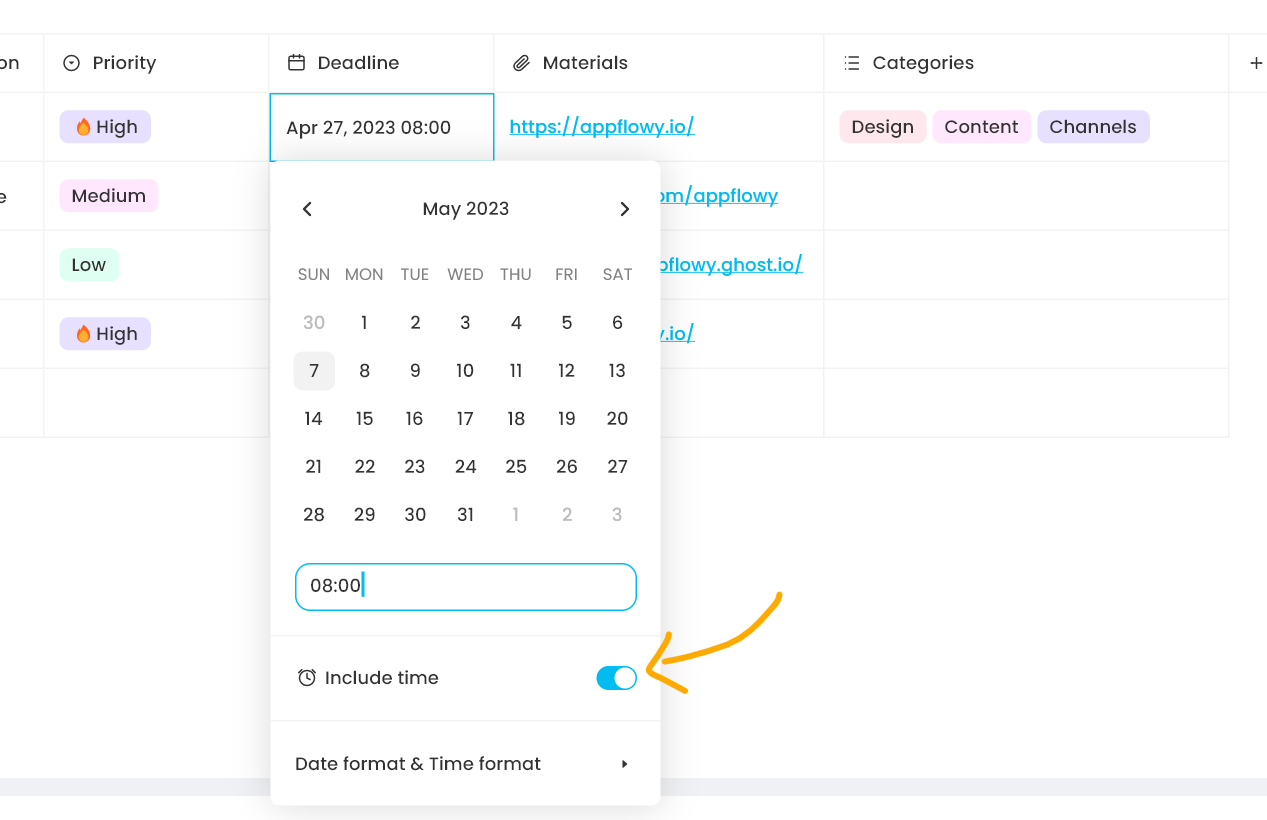
* Toggle on `Include time` to choose an exact time, not just a day.

<figure><img src="https://1003959744-files.gitbook.io/~/files/v0/b/gitbook-x-prod.appspot.com/o/spaces%2Fvs4LQcuzr0JR34ApS5sM%2Fuploads%2FZHKRogi4pZREweaeQwSN%2Fimage.png?alt=media&#x26;token=fb2801e0-381d-4c4c-acdb-22ab0b32dc5f" alt=""><figcaption></figcaption></figure>

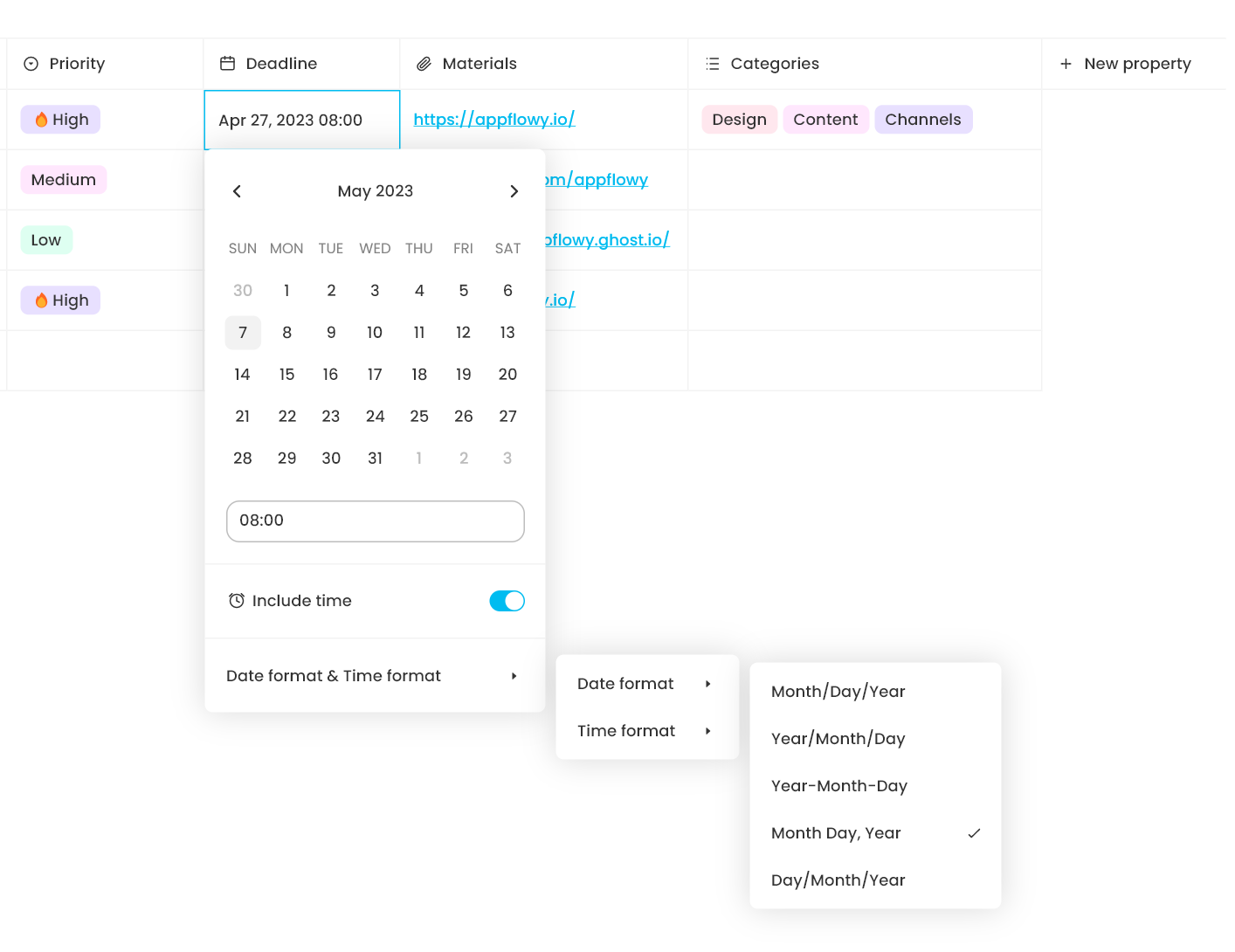
* Click `Date format & Time format` to modify these settings.

<figure><img src="https://1003959744-files.gitbook.io/~/files/v0/b/gitbook-x-prod.appspot.com/o/spaces%2Fvs4LQcuzr0JR34ApS5sM%2Fuploads%2FasvaAtiiEGyl6YAgzEg5%2Fimage.png?alt=media&#x26;token=f1ed32dc-b529-4743-a9c8-75621c6aa5a2" alt=""><figcaption></figcaption></figure>

### Delete, duplicate, and rename a property

<img src="https://1003959744-files.gitbook.io/~/files/v0/b/gitbook-x-prod.appspot.com/o/spaces%2Fvs4LQcuzr0JR34ApS5sM%2Fuploads%2FGmVf497syPQQzi3uBeIN%2Fimage.png?alt=media&#x26;token=7ff90d77-db8c-494b-9dc5-2ea463a4eb58" alt="" data-size="original">![](https://1003959744-files.gitbook.io/~/files/v0/b/gitbook-x-prod.appspot.com/o/spaces%2Fvs4LQcuzr0JR34ApS5sM%2Fuploads%2FEFlWbkh26rHNXdgAeXuz%2Fimage.png?alt=media\&token=3b1df048-8c9c-4389-8084-e19ffaf0e4f0)

Click on the property name to edit the property. As you can see in the above screenshots, clicking on "Status" will trigger an action menu where you can find "Edit property", "Hide", "Duplicate", and "Delete".

#### **Delete**

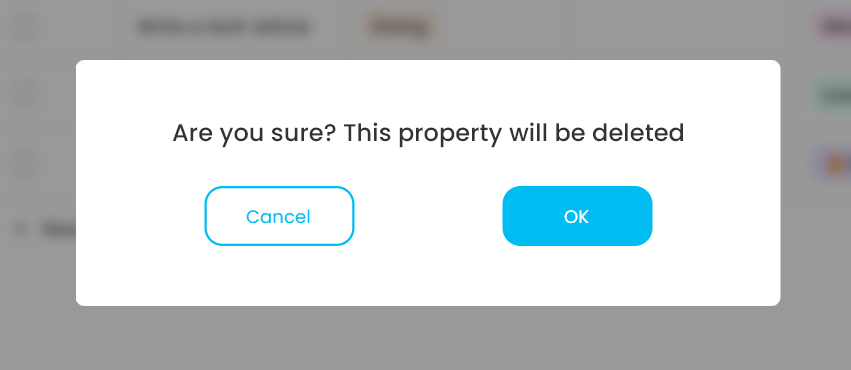
* Select `Delete`&#x20;
* Then you will need to click on `OK` to delete the property

<figure><img src="https://1003959744-files.gitbook.io/~/files/v0/b/gitbook-x-prod.appspot.com/o/spaces%2Fvs4LQcuzr0JR34ApS5sM%2Fuploads%2F3B6AAxfIgEpOnt4l4VOC%2Fimage.png?alt=media&#x26;token=f2b129f9-466f-4193-ad1f-83337012e5d2" alt=""><figcaption></figcaption></figure>

#### **Duplicate**

* Select Duplicate
* A new column with the same property type will show up to the right of the duplicated column.

<figure><img src="https://1003959744-files.gitbook.io/~/files/v0/b/gitbook-x-prod.appspot.com/o/spaces%2Fvs4LQcuzr0JR34ApS5sM%2Fuploads%2FN58M8chbRStvSrIMfBWA%2Fimage.png?alt=media&#x26;token=13eab2ec-3dd3-4c99-b9b8-8807b0950ccb" alt=""><figcaption></figcaption></figure>

#### **Rename a property**

* Choose "Edit property"
* Use `Backspace` to delete the text "Status"&#x20;
* Enter a new name&#x20;
* Click anywhere outside the dropdown menu where you edited the property name to close up the menu or simply pressing `ESC`

![](https://1003959744-files.gitbook.io/~/files/v0/b/gitbook-x-prod.appspot.com/o/spaces%2Fvs4LQcuzr0JR34ApS5sM%2Fuploads%2Faw02QGe8fw0sjb5aRqYd%2Fimage.png?alt=media\&token=731a245a-83f8-4c1f-975c-8e7cf173da08)![](https://1003959744-files.gitbook.io/~/files/v0/b/gitbook-x-prod.appspot.com/o/spaces%2Fvs4LQcuzr0JR34ApS5sM%2Fuploads%2F6NmcARwCDxi5v0siVMWc%2Fimage.png?alt=media\&token=22093822-6a76-4518-9d9f-7e563616dc64)

### Hide or show a property

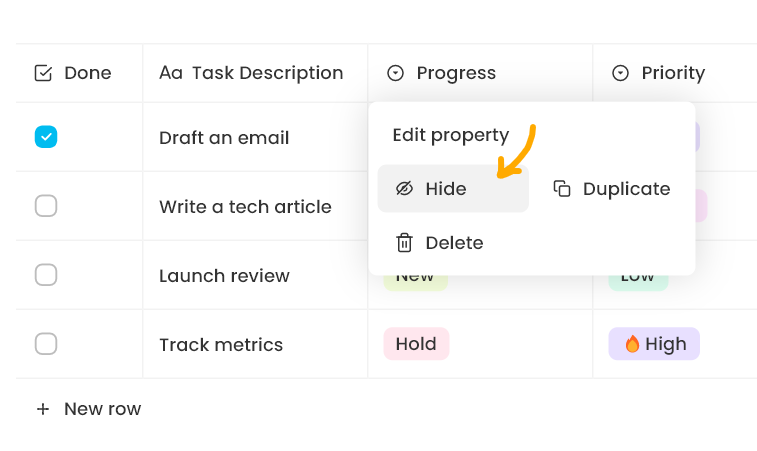
#### **Hide a property**

* Click on the property name to open up the action menu
* Click on `Hide`

<figure><img src="https://1003959744-files.gitbook.io/~/files/v0/b/gitbook-x-prod.appspot.com/o/spaces%2Fvs4LQcuzr0JR34ApS5sM%2Fuploads%2FBRjJsyGY4hG1nNIytHUa%2Fimage.png?alt=media&#x26;token=b187193f-4b47-49b5-a27c-c110a52ccbd1" alt=""><figcaption></figcaption></figure>

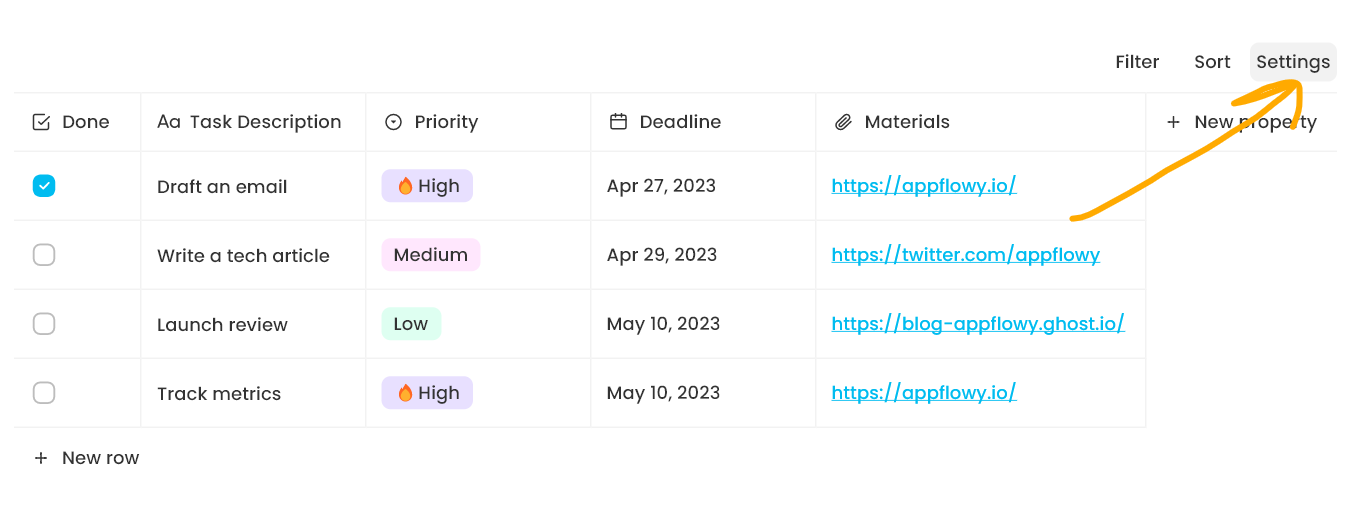
#### **Show a property**

* Go to Settings located at the top right corner of the database

<figure><img src="https://1003959744-files.gitbook.io/~/files/v0/b/gitbook-x-prod.appspot.com/o/spaces%2Fvs4LQcuzr0JR34ApS5sM%2Fuploads%2Fwy7zshGejFnccoHpzs0U%2Fimage.png?alt=media&#x26;token=65a272f4-9941-4f79-88fc-fbe002f9dc98" alt=""><figcaption></figcaption></figure>

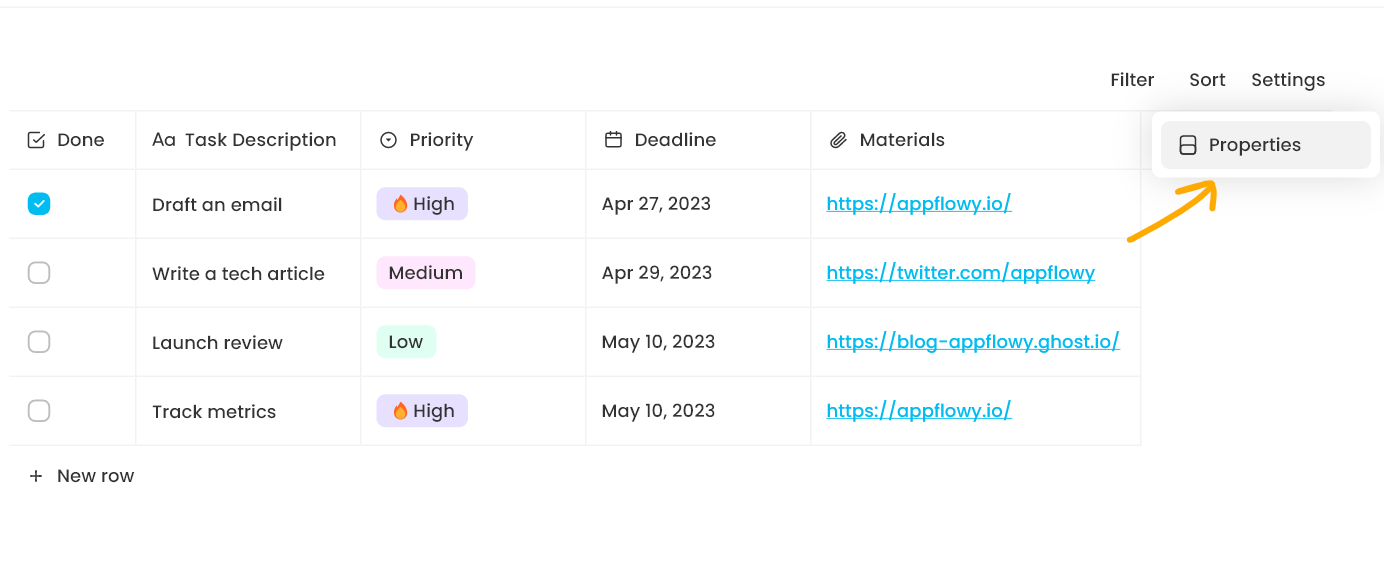
* Click on `Properties`

<figure><img src="https://1003959744-files.gitbook.io/~/files/v0/b/gitbook-x-prod.appspot.com/o/spaces%2Fvs4LQcuzr0JR34ApS5sM%2Fuploads%2Fz2MVYT7tG3oy8W4NjWyk%2Fimage.png?alt=media&#x26;token=4fd564f8-eba3-4880-bc70-4cfb5f8166e9" alt=""><figcaption></figcaption></figure>

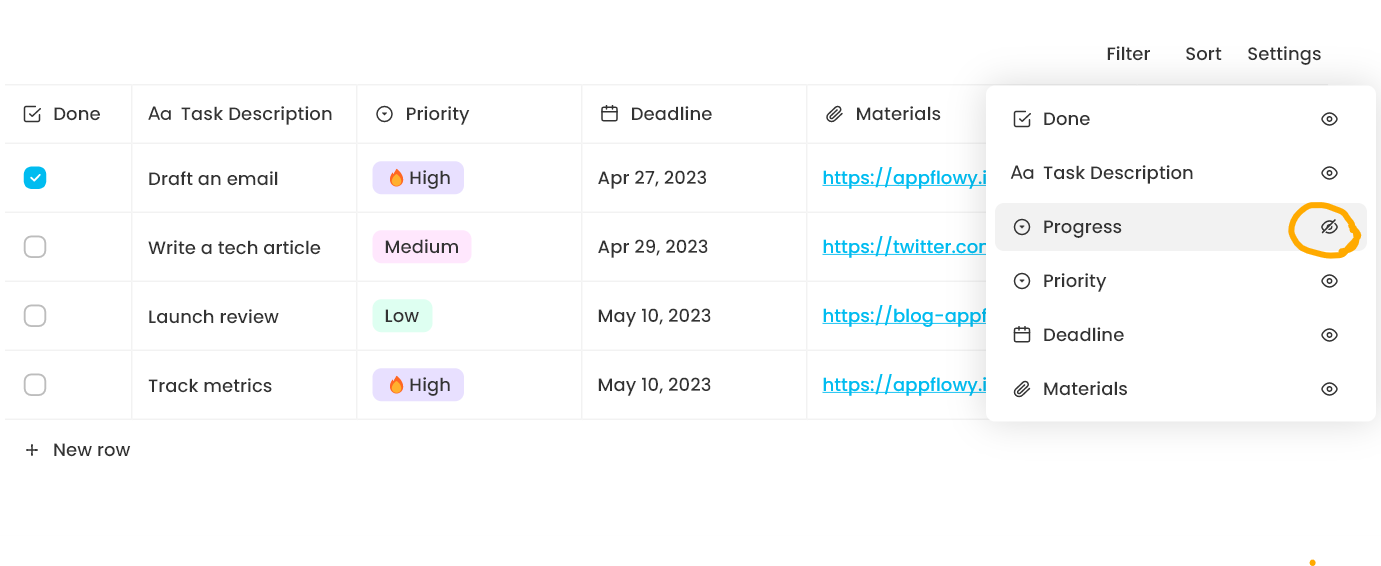
* Toggle on the 👁️ icon next to "Progress" to show it

<figure><img src="https://1003959744-files.gitbook.io/~/files/v0/b/gitbook-x-prod.appspot.com/o/spaces%2Fvs4LQcuzr0JR34ApS5sM%2Fuploads%2F6udx9YdORn3pwgl6husu%2Fimage.png?alt=media&#x26;token=5f375127-2e86-4f21-9f42-984b90b31824" alt=""><figcaption></figcaption></figure>

### Rearrange properties

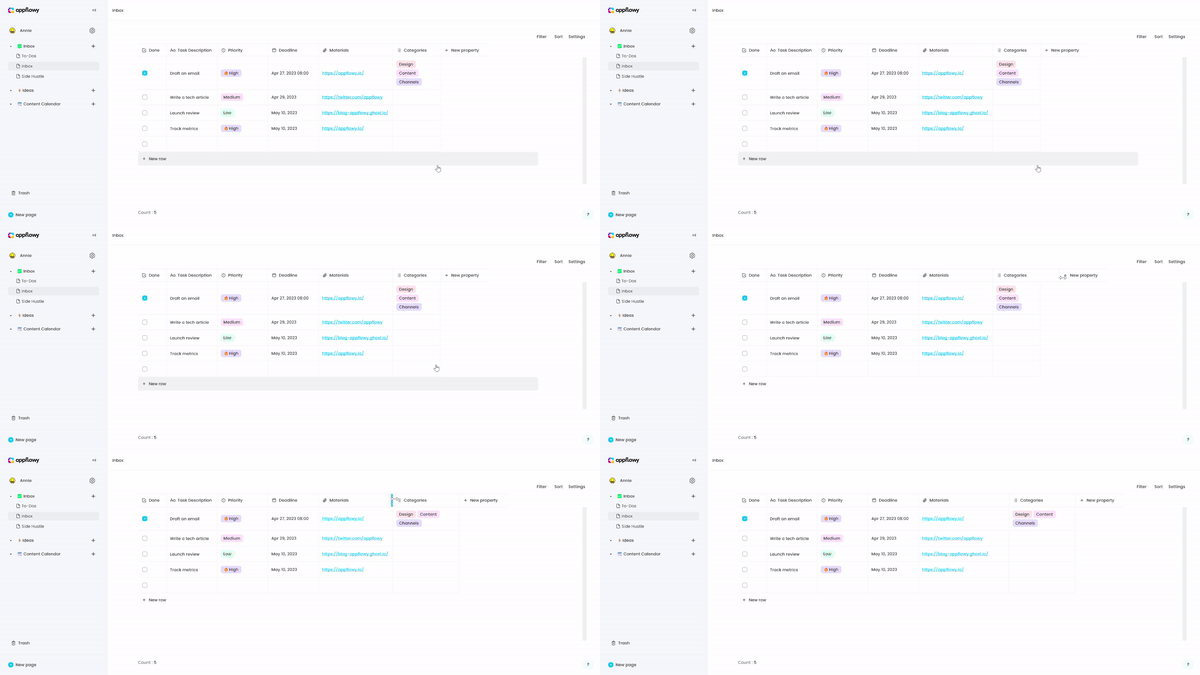
* Long press the column header to move it to another place

### Adjust the width of a column

<figure><img src="https://1003959744-files.gitbook.io/~/files/v0/b/gitbook-x-prod.appspot.com/o/spaces%2Fvs4LQcuzr0JR34ApS5sM%2Fuploads%2FfkdOEONk46kNx2BelD4q%2Fcolumn_rearrange.gif?alt=media&#x26;token=3927c50b-c165-429e-800d-d58f72da9a7b" alt=""><figcaption></figcaption></figure>